Table Of Content
- Hardware & Software Reboot Dynamics (U.S. Models)
- Step-by-Step Execution: Sourcing Every Method
- Method 1: The Touchscreen Soft Reset (Scroll Wheel Method)
- Method 2: The Vehicle Power Cycle (Deep Reset)
- Method 3: Remote Wake via Smartphone
- The Dead Battery Checklist: 10 Action Steps for an Unresponsive Tesla
- The Risks of Restarting While Driving
- Real User Reviews, Reddit Concerns, & Forum Glights
- Safe Handling Protocols: Preventing Component Damage
- 15 Technical FAQs on Rebooting Tesla Models
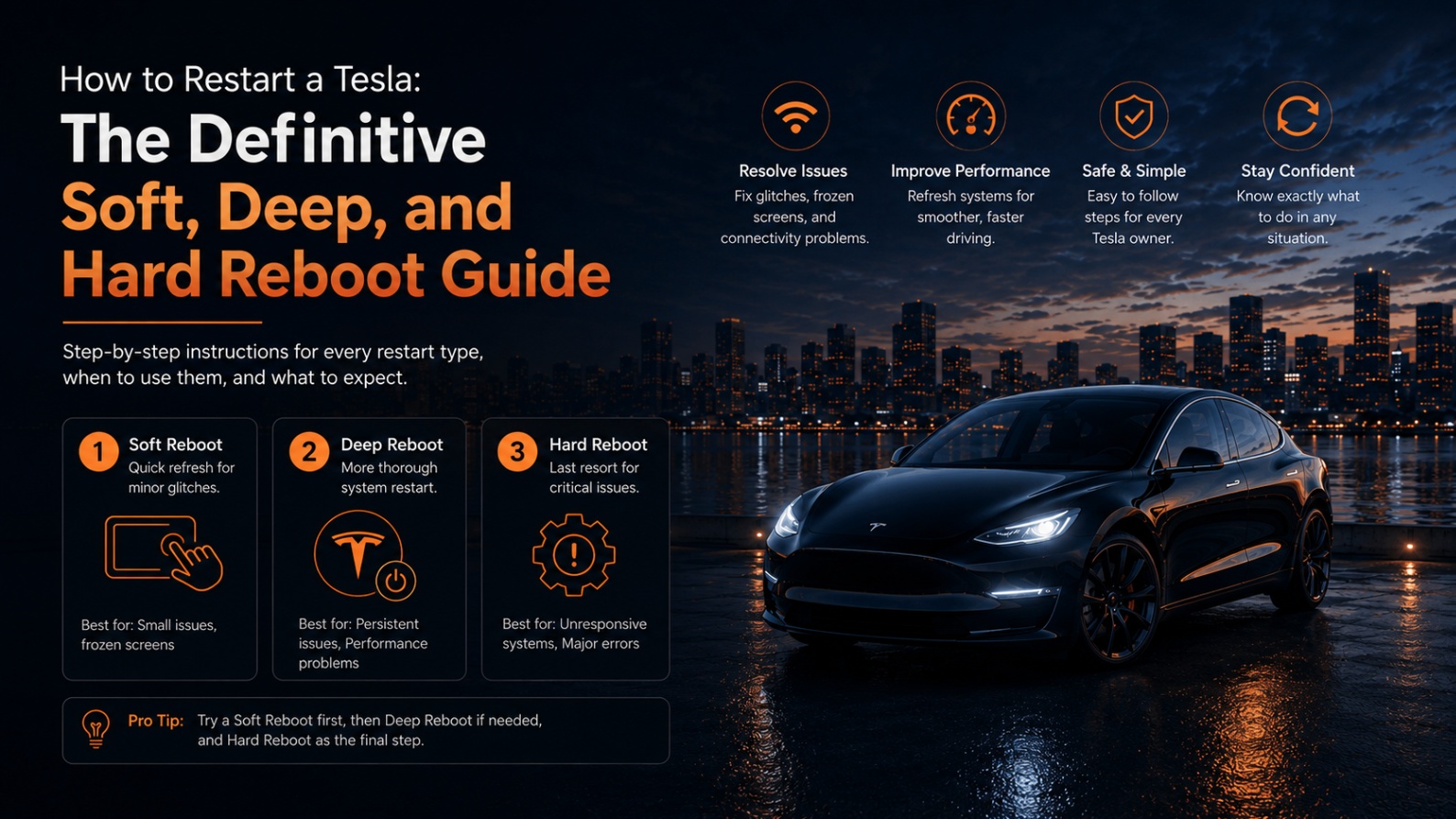
How to Restart a Tesla: The Definitive Soft, Deep, and Hard Reboot Guide
A Tesla isn’t just an automobile; it is a highly integrated, dual-bus computer network on wheels. When a screen freezes or an auxiliary system acts up, owners need to understand the structural hierarchy of what is actually happening behind the glass.
Have you ever pulled up to a stoplight or stepped inside your garage only to find your Tesla touchscreen completely frozen, lagging, or displaying a pitch-black screen? It is a distinct moment of panic that thousands of EV owners experience every single week.
Because a Tesla is essentially a highly advanced computer network on wheels, a minor software glitch or an interrupted background file write can occasionally cause the central display to lock up. When this happens, a flurry of urgent questions immediately race through your mind: Can I still safely drive my car if the screen is dead? Does holding down the brake pedal actually perform a “harder” reset, or is that just an internet myth? Could a full system reboot permanently damage my high-voltage battery pack?
In this comprehensive, data-backed guide, we dive past the common misconceptions found on social media to give you the precise, step-by-step blueprints for executing a soft scroll wheel reset, a deep vehicle power cycle, or a low-voltage auxiliary disconnect safely.
Whether you are driving a Model 3, a brand-new Model Y, or navigating the 48-volt architecture of a Cybertruck, here is exactly how to restart your Tesla without risking your warranty, your data, or your peace of mind.
Hardware & Software Reboot Dynamics (U.S. Models)
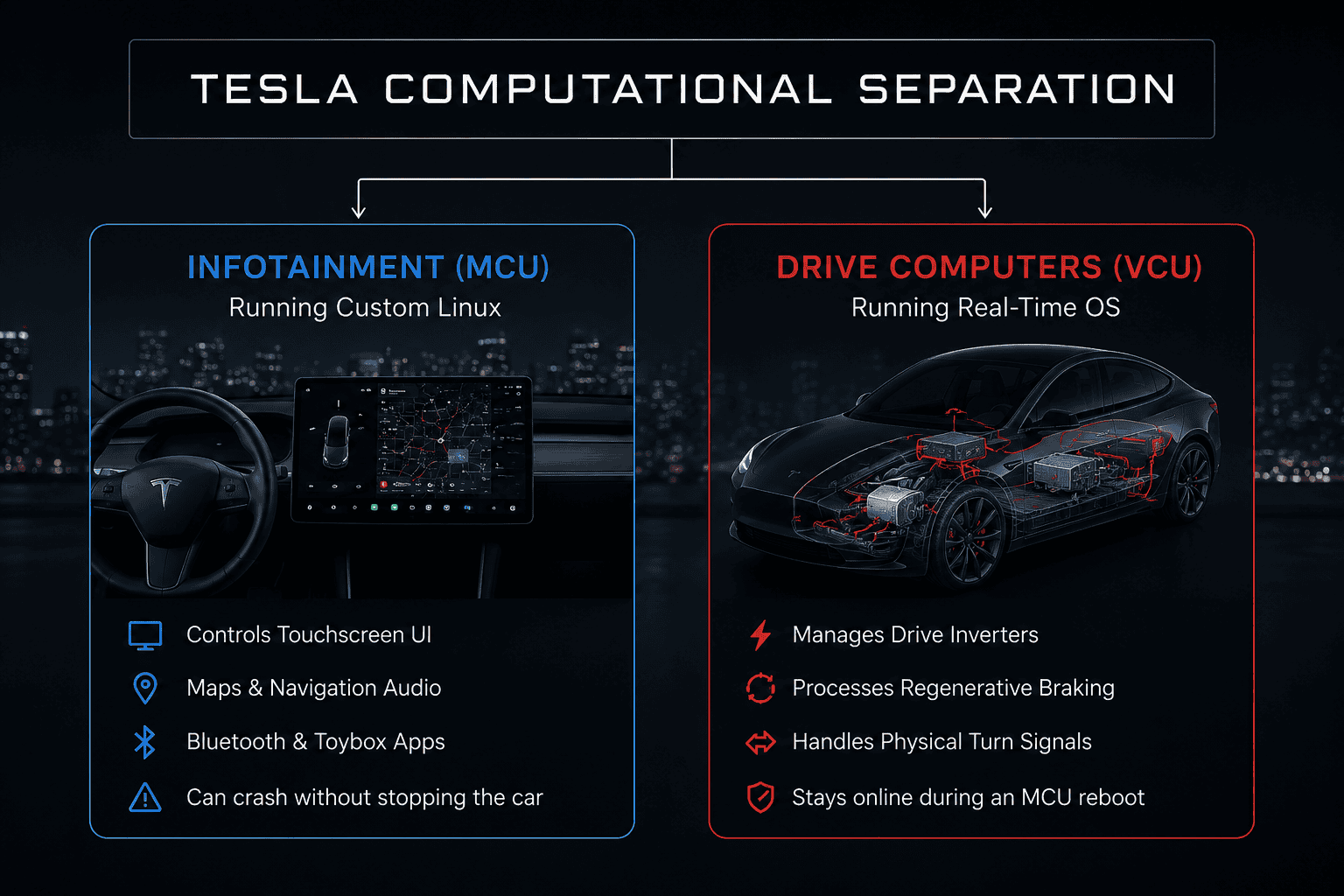
To properly troubleshoot a Tesla, you must understand that the car splits its operations across separate computer units:
The Media Control Unit (MCU) runs a custom Linux distribution optimized for graphics execution. If a memory leak occurs, often triggered by a corrupted browser cache or a bad write-cycle on your glovebox USB drive, the MCU can freeze or turn completely black.However, the safety-critical driving systems are handled by independent, redundant Vehicle Control Units (VCUs). These run a highly secure, real-time operating system that remains active even if the main touchscreen completely crashes or enters a reboot loop.
Step-by-Step Execution: Sourcing Every Method
Method 1: The Touchscreen Soft Reset (Scroll Wheel Method)
This target method flushes the active system memory of your screen without affecting active driving mechanics.
- While stopped or driving safely, place your hands on the steering wheel/yoke.
- Press and hold down both scroll wheel buttons simultaneously.
- Keep them pressed for approximately 10 to 15 seconds.
- The central touchscreen will abruptly click and go black. Release the buttons.
Wait roughly 30 seconds. The glowing silver Tesla “T” logo will appear, indicating the Linux core is booting back up.
Method 2: The Vehicle Power Cycle (Deep Reset)
This process completely powers down all background relays and secondary body control modules.
- Park the vehicle safely, close all passenger doors, and remain inside the driver’s seat.
- On the screen, tap Controls > Safety > Power Off.
- Critical Step: Do not touch anything for exactly two to five minutes. Do not open a door, do not tap the brake pedal, do not touch the steering wheel, and do not wake your phone app. Let the high-voltage contactors physically click open.
- After the waiting window closes, step firmly on the brake pedal or pull the interior door handle to awaken the car.
Method 3: Remote Wake via Smartphone
If your vehicle’s MCU is functional but communication modules are lagging, you can force a network reconnection through the mobile app by triggering an auxiliary control line, such as toggling the Climate Control ON/OFF or popping the front trunk (frunk) actuator remotely.
The Dead Battery Checklist: 10 Action Steps for an Unresponsive Tesla
If your vehicle shows absolutely no signs of life, won’t open its doors, and refuses to respond to standard key cards, follow this sequence:
- Check the Tow-Eye Cover: Pop the small round cover on the front bumper.
- Expose the Jump Leads: Pull out the two wires hidden inside (red positive, black negative).
- Apply External 12V Power: Connect a portable jump box or external battery to these leads to pop the front trunk (frunk) hood automatically.
- Locate the Low-Voltage Battery: Remove the plastic cowl panel near the windshield washer fluid cap inside the frunk.
- Verify Voltage Type: Identify if your car uses a traditional black lead-acid 12V battery or the modern, smaller red-top 16V Lithium-ion auxiliary module.
- Inspect the First Responder Loop: Locate the bright red tag circuit wire nearby; if this loop is physically severed, the high-voltage pack is permanently disconnected for safety.
- Jump the Low-Voltage Battery: Connect a modern smart charger to the positive auxiliary post and a bare chassis ground point.
- Listen for Contactors: Listen for a loud structural metallic clack coming from beneath the rear seat area, this indicates the main battery pack has re-engaged.
- Authorize Entry: Tap your physical NFC card onto the driver-side B-pillar to verify if the locking loop has re-engaged.
- Run a Thermal Scan: If the car powers up but displays red error codes on the dash, look for warning signs like an active fluid puddle beneath the car, which could indicate a cooling loop puncture.
The Risks of Restarting While Driving
Can you reboot your Tesla while rolling down the highway at 70 mph? Yes, it is physically possible, but you must expect specific, temporary limitations:
- Loss of Instrumentation: Your digital speedometer, turn signal clicker sounds, blind-spot camera feeds, and map navigation vanish completely for roughly 30 to 60 seconds.
- Autopilot & FSD Persistence: Surprisingly, if you are actively utilizing Full Self-Driving or Autopilot when you press the scroll wheels, the car will continue steering and maintaining speed along its lane path. However, because you lose all visual and audible alerts, you cannot see warnings to take control of the wheel.
- The Smart Choice: Always pull over to the shoulder or a parking lot before executing a reboot whenever possible. If you must reboot while rolling, maintain a constant throttle pedal pressure and match the flow of surrounding traffic.
Real User Reviews, Reddit Concerns, & Forum Glights
A close look at Tesla subreddits, Quora threads, and enthusiast forums highlights several recurring owner experiences regarding system freezes:
The Boot-Loop Trap: A major complaint on Reddit involves an issue where the touchscreen goes black, shows the Tesla logo, and then crashes again repeatedly. Forum members note this is frequently caused by a corrupted firmware update file or a failing low-voltage battery that is unable to supply steady current to the MCU during startup.
The Unresponsive Backup Gear Selector: On platforms like Quora, owners of newer stalkless Model S and Model Y units have noted that when their main screen froze while parked, they were temporarily trapped because the primary gear selection resides on the screen. While backup physical P-R-N-D capacitive buttons are located on the center console, users often note that if the MCU completely locks up the communication bus, those backup buttons can occasionally fail to respond until a full scroll wheel reset is initiated.
Safe Handling Protocols: Preventing Component Damage
To ensure you never cause software damage or trigger a electrical surge within your vehicle’s high-voltage systems, adhere strictly to these safety bounds:
- Never Pull the First Responder Loop Under Normal Conditions: This physical loop contains a physical cutoff line meant for emergency workers to isolate the high-voltage battery during an accident. Pulling it under normal conditions can throw the car into a deep diagnostic fault state that requires a flatbed tow to a service center to reset.
- Avoid Rapid, Repeated Scroll Wheel Presses: If you frantically press the scroll buttons multiple times while the system is trying to process a boot sequence, you risk corrupting the core file system partition on the infotainment drive, leading to an expensive, out-of-warranty MCU replacement.
- Disconnect USB Media Drives First: If your screen is locked up, pull out your dashcam USB drive from the glovebox before holding down the scroll wheels. If the freeze was caused by a corrupted video file loop, booting up with that drive still inserted can trap the system in an immediate crash cycle.
15 Technical FAQs on Rebooting Tesla Models
No. A standard soft reset acts exactly like restarting a smartphone; it flushes the active system RAM cache but preserves all your persistent internal data configurations, driver profiles, and settings intact.
It depends on the code. If it is a minor software communication glitch, a reboot will clear it. However, if it is a physical hardware alert (like a cooling pump failure or an insulation fault), the code will immediately reappear upon startup.
Let the vehicle sit undisturbed in a locked state for at least 30 minutes to complete a deep sleep cycle. If it still fails to awaken, your vehicle’s low-voltage auxiliary battery may be completely dead, requiring a manual jump start.
The total timeline from the moment the screen goes dark to the full return of your map interface ranges between 30 and 45 seconds on current AMD Ryzen processing architectures.
The physical clicking audio is routed directly through the infotainment system’s audio amplifier. While the physical exterior LED turn signals will still flash outside the vehicle, the interior acoustic feedback is temporarily offline during the restart.
No. This is an urban myth. Official Tesla service manuals confirm that the vehicle’s brake sensor loop has zero computational connection to the infotainment system’s reset sequence.
The Cybertruck runs a complex 48-volt low-voltage system. If a hard system disconnect is required, you must isolate the specialized 48V auxiliary battery pack, which follows a different procedure than standard 12V or 16V passenger car architectures.
Yes. If your phone’s contact list contains corrupted characters or emojis, syncing it over Bluetooth can occasionally crash the infotainment phone app layer, freezing the entire screen.
Tesla automatically executes a clean system reboot every single time it finishes downloading and installing an over-the-air (OTA) software update to ensure all system files compile correctly.
No. Screen Clean Mode simply dims the display and disables touch inputs so you can wipe smudges and dust off the glass without triggering accidental button presses. It does not reboot the system.
Yes. If the dashcam drive suffers from write-cycle sector failures, the constant video buffering loop can overload the MCU’s storage controller, causing the entire display to freeze or crash.
Yes. The climate fan and heating/cooling systems run on an independent sub-bus. While you won’t be able to adjust the temperature controls until the screen finishes booting back up, the airflow will maintain its last setting during the restart.
There is no factory-recommended schedule. You should only initiate a manual restart if you notice latency within the navigation maps, app connectivity dropouts, or an unresponsive touchscreen.
The charging process will continue safely at its negotiated rate. The high-voltage charging logic is handled by the car’s charge controller, completely independent of the infotainment screen. You can safely perform a scroll wheel reset while plugged in.
A Reboot restarts the operating system while keeping your data safe. A Factory Reset deletes all saved driver profiles, clears your navigation history, unpairs your phone keys, and completely unlinks the car from your Tesla account, returning it to its original factory software state.
Spread Some Love
Author